
Time Lapse Sunrise
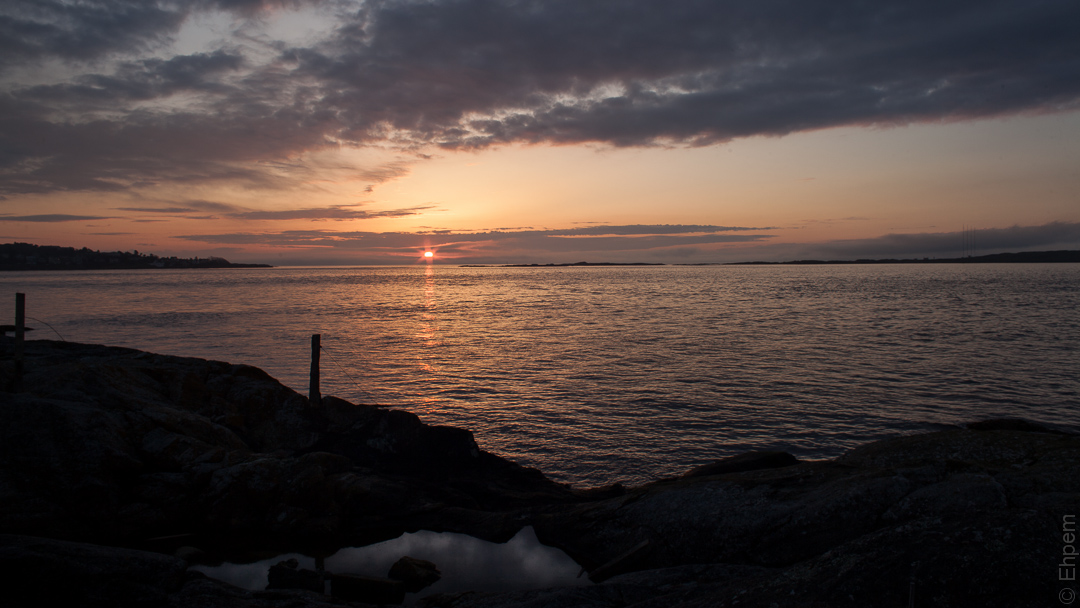
Another attempt at timelapse photography, this one a bit more experimental than my earlier ones, with several lessons on what not to do.
To view the video click on the image below.
I was intrigued by the problem of how to adjust the exposure as one goes from dark to light, something I had experienced in my first timelapse, which was of a sunset (though in that case it got darker). So, the experiments in this video are around that problem.
The first way I tackled this was to start the series of photos at F-11. My old Nikkor-N wide-angle is a manual lens that goes to F-16. The idea was to turn the exposure ring in tiny increments across an f-stop to adjust the exposure as the sun came up. Leaving one f-stop was not all that bright, but I did start with about a -2 exposure that I wanted the sunrise to brighten up during the timelapse. I thought that a total of 3 f-stops in the sequence should be adequate, and I did not want to be taking really long exposures of the moving water (though that could be pretty cool as well).
I soon found I needed a lot more scope for adjustment, so in one of the 10 second gaps between exposures I changed the aperture ring one f-stop more open and one f-stop faster exposure. Exposures either side of this operation looked the same so it seemed to be working and I could roll through another f-stop or two on the aperture ring. However, when the sun really came out, I needed more room quickly and so adjusted 2 f-stops wider on the ring (and again compensating 2 f-stops in speed). This caused the framing to change very noticeably which can be seen in the video. I softened this effect with cropping differently before and after this change but it is visible as little twitches in the framing during the 5th second of the video, and the 1 f-stop adjustments are also visible. From just after 5 seconds to about 8 seconds you can see that I closed the aperture down a lot. I then decided to open it up again for a brighter foreground near the end of the video, and to see how that would look.
I found that I could not turn the aperture ring with much precision – mostly because of the ball bearing in the ring which clicks into place for each f-stop – it did not allow a smooth sweep through a couple of f-stops. To deal with the little jerky changes, I tried to smooth them out in Lightroom 4, with exposure adjustments – initially in the Library module with 1/3 EV adjustments, and then with finer adjustments over a few images on either side of the ‘jump’ in the Develop module. The bigger jumps in exposure were usually around 1/3 of an F-stop, so this approach smoothed things out fairly well. Overall, the aperture adjustments came out fairly smoothly without too much flicker, so I think that technique can work out, if I started out right and did not make major adjustments in the sequence midway, and it would be even better if I pulled the ball bearing from the aperture ring.
The next strategy was also an editing one. I adjusted the white balance the same in all images. I masked out the sky and darkened it even further in all images, and did the reverse for the pool in the foreground. This required changes at the place where I made a 2 f-stop change in the aperture ring. So there were 2 different masks for each, and applied to all images using the sync function. I also cloned a couple of dust spots for all 285 images. All of this took an hour or so of fiddling and tweaking, maybe even two hours, I wasn’t keeping track. However, then I really paid the price for not doing a better job ‘in-camera’. When I went to render the video out of the Lightroom Slideshow module I found that it was going to take many hours. I decided to go to bed, but unfortunately one of my sons was up late and inadvertently turned off the computer, thinking he was turning it on, and thus I lost several hours of processing time.
The next day, I started that process over again, but since the edited images were choking to my computer I took a different approach which I thought would be safer. First I optimised the LR4 catalogue and did what else I could to speed things up, then I exported the files to new images for rendering into a video. Unfortunately, each export took about 5 minutes (12 images an hour), so this process ended up running for nearly a whole day (do I need a new computer? I think so, the four CPUs were maxed out at 100% each for much of the time processing each image, and the RAM was running around %70).
The reason I chose to make new images was that this process could be interrupted without loss except of the image being exported (ditto if the computer crashed which I thought possible). This worked out since we needed to break off the process a few times to use the computer for other things (talk about slow if we did not). Sadly, I chose the wrong crop size for the exported images and thus the video is quite small and lower resolution than I had hoped – I won’t be exporting new ones as the resulting video is not good enough to go through that grind again. However, rendering the new photographs into a video only took 2 or 3 minutes once I had the new images to work with (I made a few edits in about 5 of those images, two came across without a crop for instance).
So, my recommendations from all of this:
1. Do all you can in-camera to reduce the need for edits of the images taken (a graduated filter on the lens, good framing, a good starting exposure for what is coming in terms of light, smooth slow exposure adjustments). Keep your sensor clean as the smaller adjustments like dust spotting seem to slow down LR4 disproportionately Also, probably in-camera sharpening and similar would mean fewer LR4 edits afterwards. Setting a lower resolution (to a full HD standard) would be good, unless one plans to pan and/or zoom a crop rectangle through the high-resolution image (I don’t have software for this but it looks intriguing and can add lots of interest to a timelapse sequence).
2. If planning on adjusting exposure during the sequence, then start with the aperture at one extreme or the other so that exposure adjustments are continuous without having to go back and do more in jerky little steps like I ended up with. Or if more than about 6 f-stops are needed (the typical range on an old manual lens), then adjust all the way from one end to the other, then reset in one step to the original starting point aperture and carry on from there so there is only one change to try to fix, though calculating in one’s head the difference in shutter speed could be tricky. This should reduce or eliminate jerky changes in framing which really are not acceptable for good quality. I should try making the adjustments with just the shutter speed to see if a series of 1/3 EV changes are smooth enough. The changes with the aperture ring were mostly a lot less than 1/3 EV, so I rather think it would not work, except perhaps for a big change.
3. I guess if one is handy and doing this kind of photography a lot, then it would be beneficial to take apart the lens and get that ball bearing out of the aperture ring so that there is more hope of a continuous smooth adjustment. I would say also take a few shots at each exposure so that there is a smoother gradient. With the sun emerging from behind a dense cloud, I had little choice but to do it quite quickly as the shot was burning out rapidly with one or two f-stops increase in brightness in a couple of minutes.
4. Optimise your LR4 performance as much as possible. Now that I have completed this run, I am going to try a fresh catalogue and fresh preview file as that can make a huge difference to LR4 performance.
5. Don’t shoot from daylight to darkness (or reverse) when first starting out – it is too damned complicated. And nice results can be had in even light; my second timelapse video shows this potential.
.
.
Canon EOS 5Dmkii, Nikkor-N 24mm/f2.8 lens, ISO100. ranged from f-8 to f-16, and 0.4 second to 1/200th second, 284 stills shot at 10 seconds apart (between 6:48 and 7:38am) with the aid of a Pixel TW-282 timer. RAW files edited in Lightroom 4, exported to smaller jpegs and then rendered as a movie through LR4 Slideshow module, with a user template downloaded from a youtube instructional video which works very well. I chose the 23.97fps option.
.
.


 burnt embers
Pingback: Time Lapse Storm Drain | burnt embers
There are some great tips here and I think I may use them when I start doing time lapse. I think all your work paid off and you learned quite a bit. It’s a nice process and you’ve documented it well. Sharing is a bonus.
LikeLike
Thanks Ken. I learned a lot from what other people shared on-line so it seems only fair to reciprocate. More to come I think…
LikeLike
Great post, Ehpem. I definitely have to start making some timelapse; thank you for the insights and advice!
LikeLike
Thanks Lynn! I want to do some plants at some time. I did a very short video of periwinkle snails that had a lot of lighting issues, but is fascinating to see them cruising all over the rock face. I am not sure whether to post that one, or to redo it if I can get time at the right tide.
LikeLike